
Managing Members
Viewing members, changing roles, removing members, re-sending invitations
3 min read•Article 2 of 7 in Workspace Management
Managing Members
The Members page is your central hub for managing who has access to your workspace and what they can do.
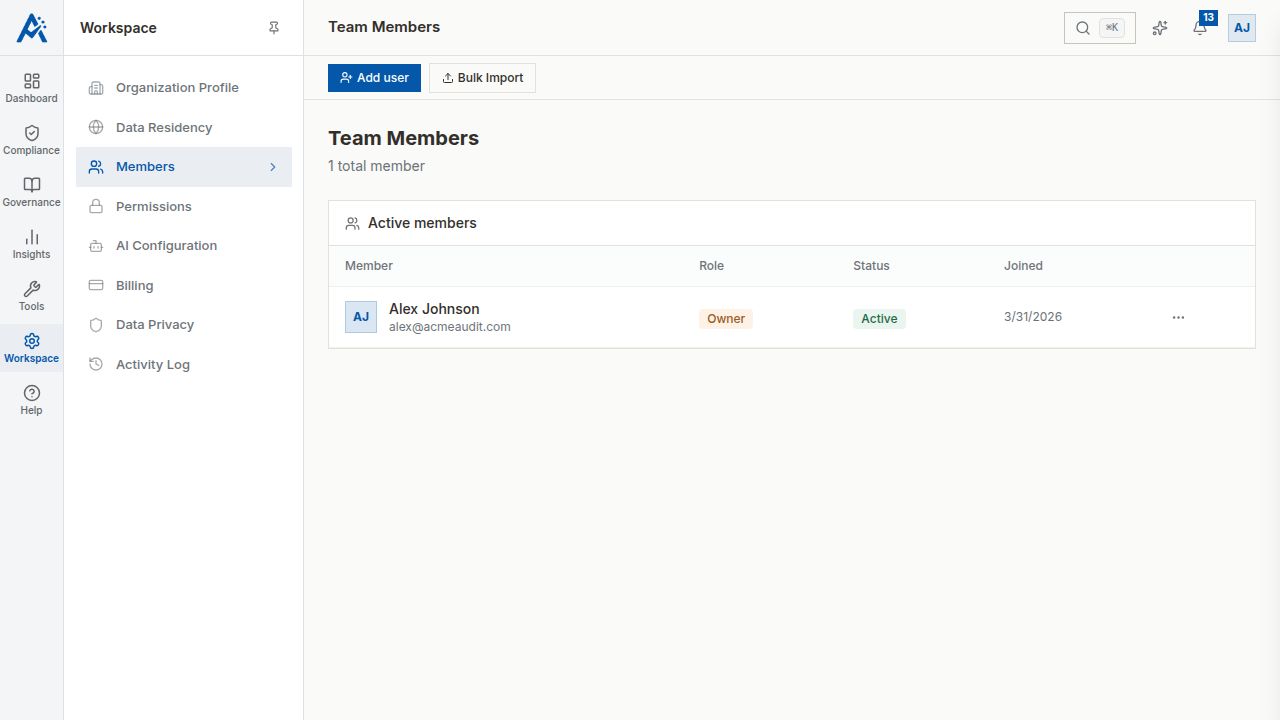
Viewing Members
Navigate to Members in the sidebar to see:
- •All active members with their names, emails, and roles
- •Pending invitations awaiting acceptance
- •Last active date for each member
Changing a Member's Role
1.Find the member in the list
2.Click the role dropdown next to their name
3.Select the new role
4.The change takes effect immediately
Available roles: Owner, Auditor, Respondent, Viewer
Removing a Member
1.Find the member in the list
2.Click the More menu (three dots)
3.Select Remove Member
4.Confirm the removal
When a member is removed:
- •They immediately lose access to the workspace
- •Their historical contributions (responses, reviews) remain intact
- •They can be re-invited later if needed
Managing Invitations
For pending invitations:
- •Re-send — Click to send a new invitation email
- •Revoke — Cancel the invitation before it's accepted
- •Expired — Invitations expire after 7 days; re-send to create a new one
Bulk Actions
- •Invite multiple members at once by entering multiple email addresses
- •Filter the member list by role
- •Search members by name or email
Tips
- •Regularly review member access, especially when team members change roles
- •Remove members who have left the organization promptly
- •Use the appropriate role for each member to maintain security