
Viewing Assessment Reports
Accessing individual assessment reports and understanding score breakdowns
3 min read•Article 1 of 9 in Reports & Analytics
Viewing Assessment Reports
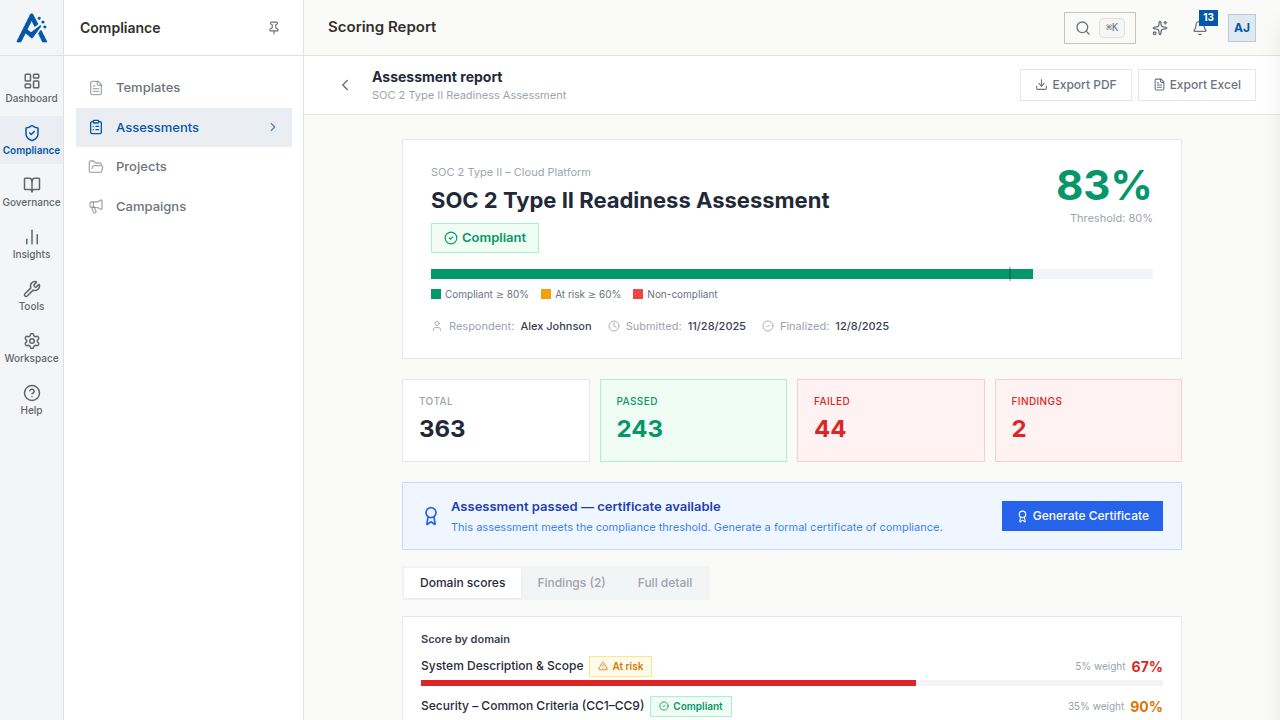
Assessment reports provide detailed insights into compliance scores and findings for each completed assessment. These are per-assessment reports that show results for a single finalized assessment.
Accessing Reports
There are several ways to access individual assessment reports:
1.From the assessment — Open a finalized assessment and click View Report
2.From the Reports page — Navigate to Reports in the sidebar and select the Assessment Reports tab
3.From the Dashboard — Click on recent report links in the activity feed
Report Contents
Each assessment report includes:
Score Overview
- •Overall compliance score with a visual gauge
- •Pass/Fail determination based on the compliance threshold
- •Comparison to previous assessments (if available)
Domain Breakdown
- •Individual score for each domain
- •Color-coded indicators (green for strong, yellow for moderate, red for weak)
- •Ranking of domains from strongest to weakest
Question Details
- •Per-question verdicts and scores
- •Reviewer notes and comments
- •Evidence references
- •Critical gate status
Findings
- •All findings organized by severity
- •Remediation assignments and deadlines
- •Current resolution status
Custom Group Reports
For cross-assessment analysis and group comparisons, use the Report Builder. Navigate to Reports and click Create Report to build custom reports that aggregate data across multiple assessments. See the "Creating Custom Reports" article for details.
Tips
- •Focus on the lowest-scoring domains for improvement opportunities
- •Review critical gate results separately — a single failure affects compliance
- •Compare reports across time periods to track improvement