
Building a Template Manually
Adding domains, control areas, and questions step by step
5 min read•Article 3 of 9 in Templates
Building a Template Manually
For full control over your assessment structure, build a template manually using the template builder.
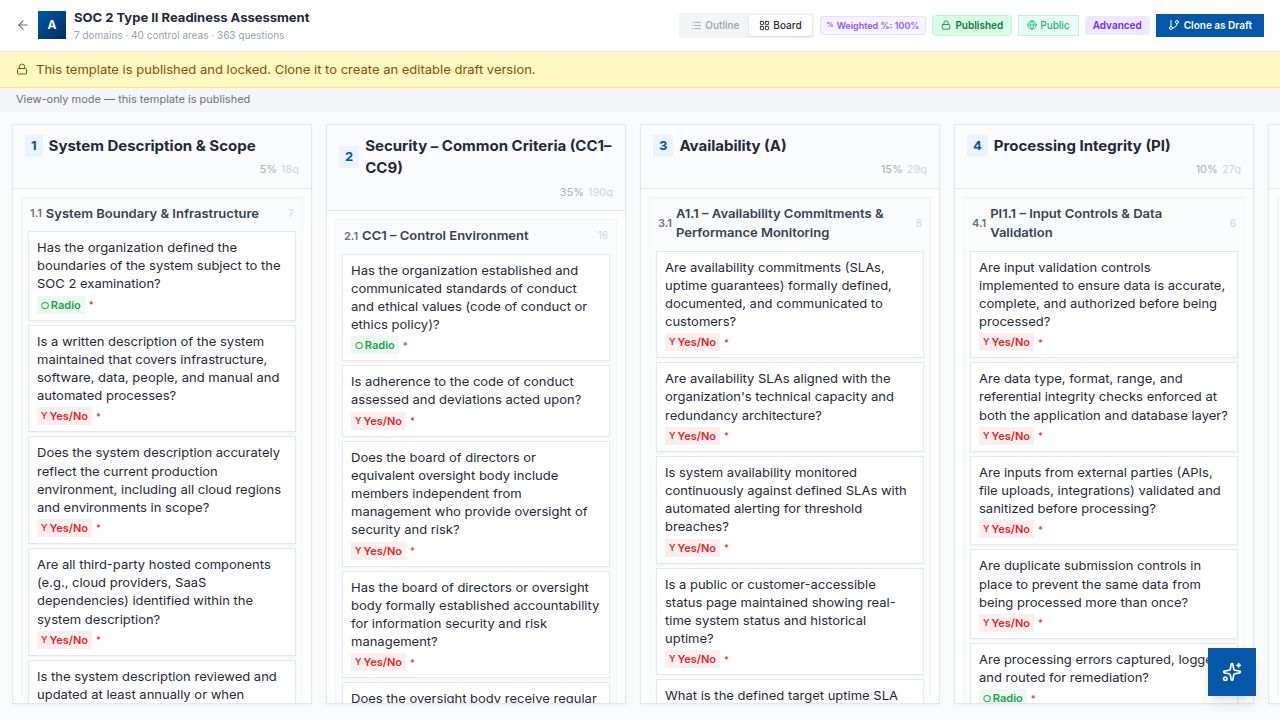
Getting Started
1.Navigate to Templates > New Template
2.Select Build Manually
3.Enter the template name and description
4.Choose a framework (optional) and compliance threshold
Adding Domains
Domains are the top-level organizational units:
1.Click Add Domain in the builder
2.Enter a domain name (e.g., "Access Control")
3.Add a description explaining what this domain covers
4.Set the domain weight (how much this domain contributes to the overall score)
Adding Control Areas
Within each domain, add control areas:
1.Click Add Control Area within a domain
2.Enter the control area name (e.g., "Password Policy")
3.Add a description
Adding Questions
Within each control area, add questions:
1.Click Add Question
2.Enter the question text
3.Select the question type (Text, Yes/No, Single Select, Multi Select, Evidence)
4.For select types, add the answer options
5.Set the question weight
6.Optionally mark as a critical gate
7.Add guidance text to help respondents
Organizing Your Template
- •Drag and drop to reorder domains, control areas, and questions
- •Duplicate existing items to save time
- •Delete items you no longer need
Best Practices
- •Keep questions clear and specific
- •Provide guidance text for complex questions
- •Use consistent question types within control areas
- •Set meaningful weights — higher weights for more important controls
- •Use critical gates sparingly for truly essential requirements